Search
Search is a functionality, offered in many situations inside NES, for filtering information.
Introduction
With Search, it is possible to filter participant information, such as gender, marital status, location, diagnosis and age.
In this version of NES, only Export uses this functionality, but others may use it in the future.
For starting searching, first you have to call the functionality that needs the participants information. For example, you have to click the Export menu item in order to select participants that will be used in the export functionality, as explained at the Export page.
You can either select all participants or select specific filters from participants.
If you select the Selected participants option, at least one of the filters must be selected.
Selecting All Participants
Choose All participants if you don’t want to filter participants and click the Next button to continue with the functionality, as informed at the Concluding the filtering process section.
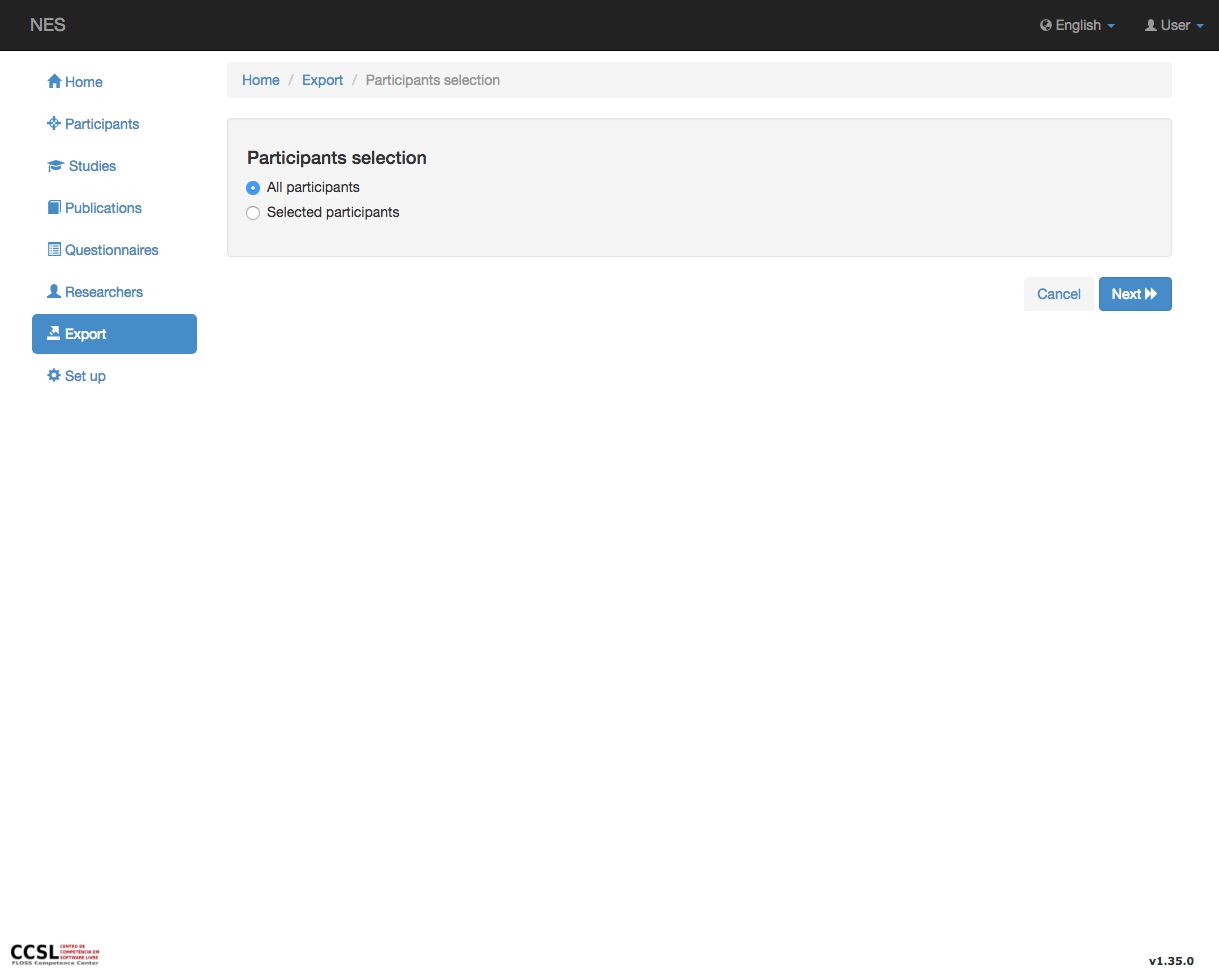
Filtering Gender
In order to filter gender, choose Selected participants option and new information about filters will be displayed. Click the Gender checkbox and gender information will be enabled to selection. You can select one or more options by using one of the options:
click one field and drag up or down in order to select many continuous fields;
choose more than one field by holding the control(Windows/Linux)/command(Mac) key and clicking each field. You can also unselect the field by clicking a selected field once more.
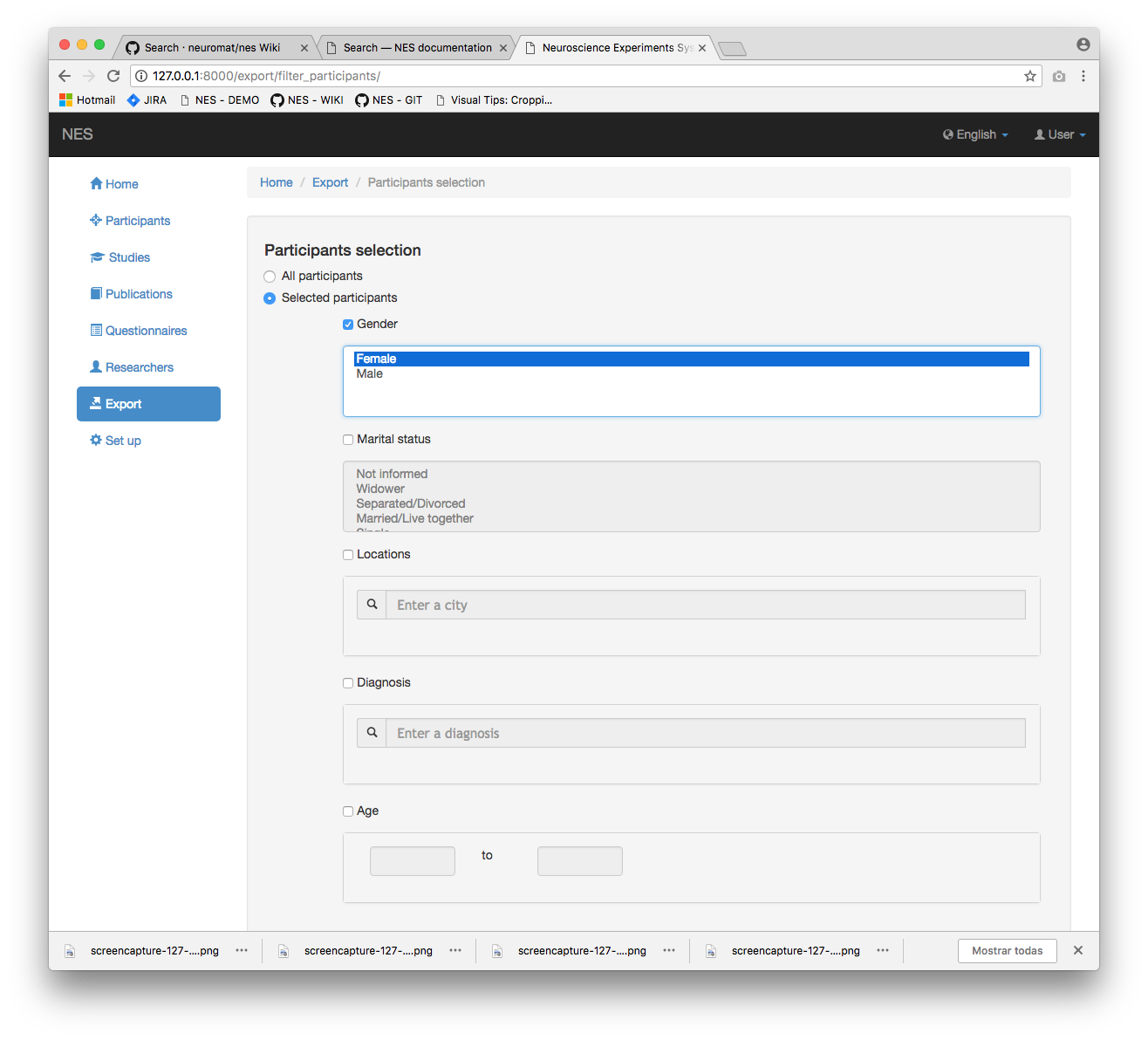
You can continue selecting other options or simply go to Next button, as explained at Concluding the filtering process section.
Filtering Marital Status
The same procedure as Filtering Gender is used for filtering marital status.
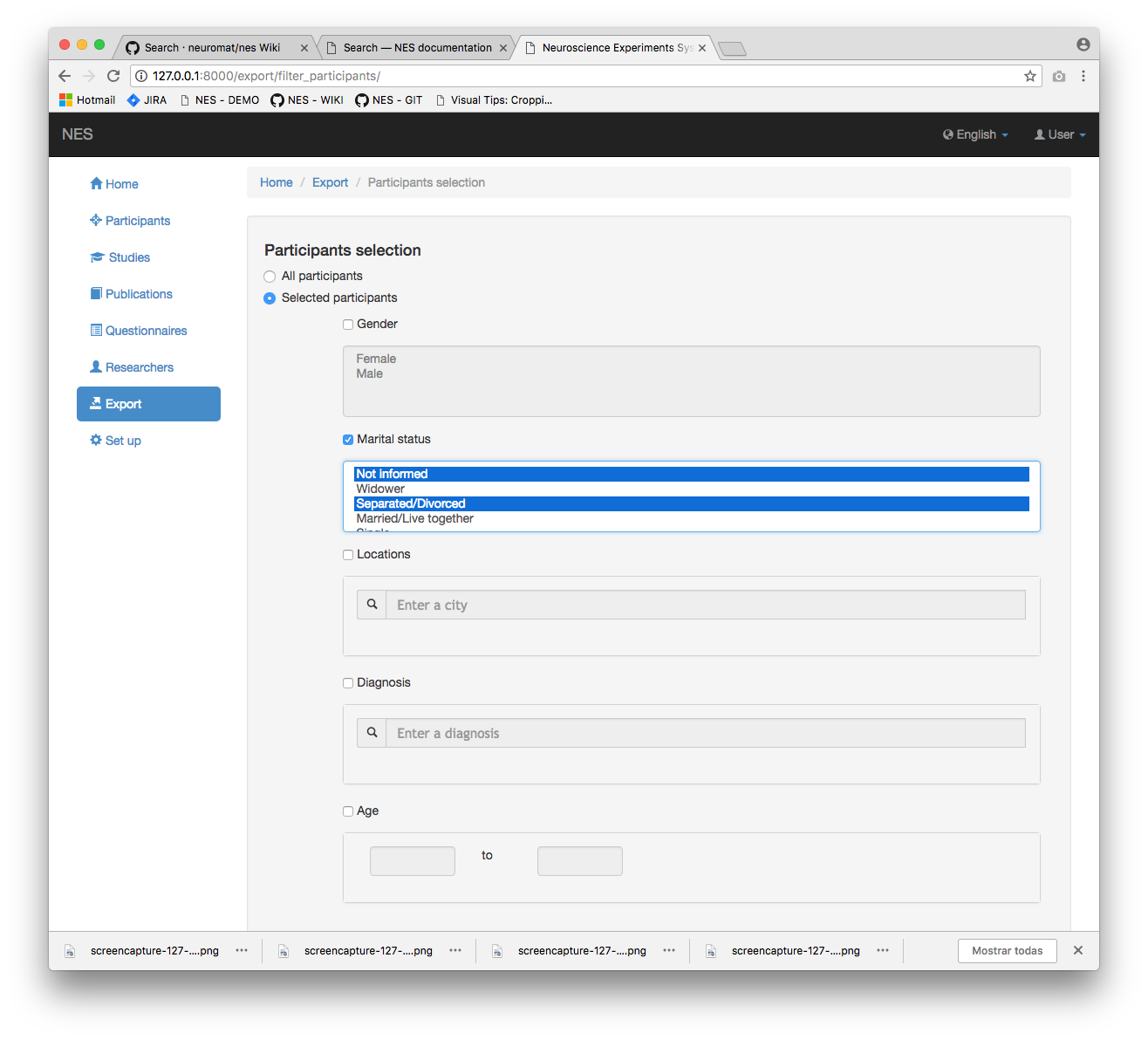
You can continue selecting other options or simply click the Next button, as explained at Concluding the filtering process section.
Filtering Locations
In order to filter locations, click the Locations checkbox and a field will be enabled for you to type the name of the city. Suggestions will appear in a drop down list, originated from the participants’ addresses filled when they were inserted at the database. You can select one location at a time; Once you select one of them, a box with the name of the location appears right above the search field, with a X that you can click if you want to remove the location from your filtering.
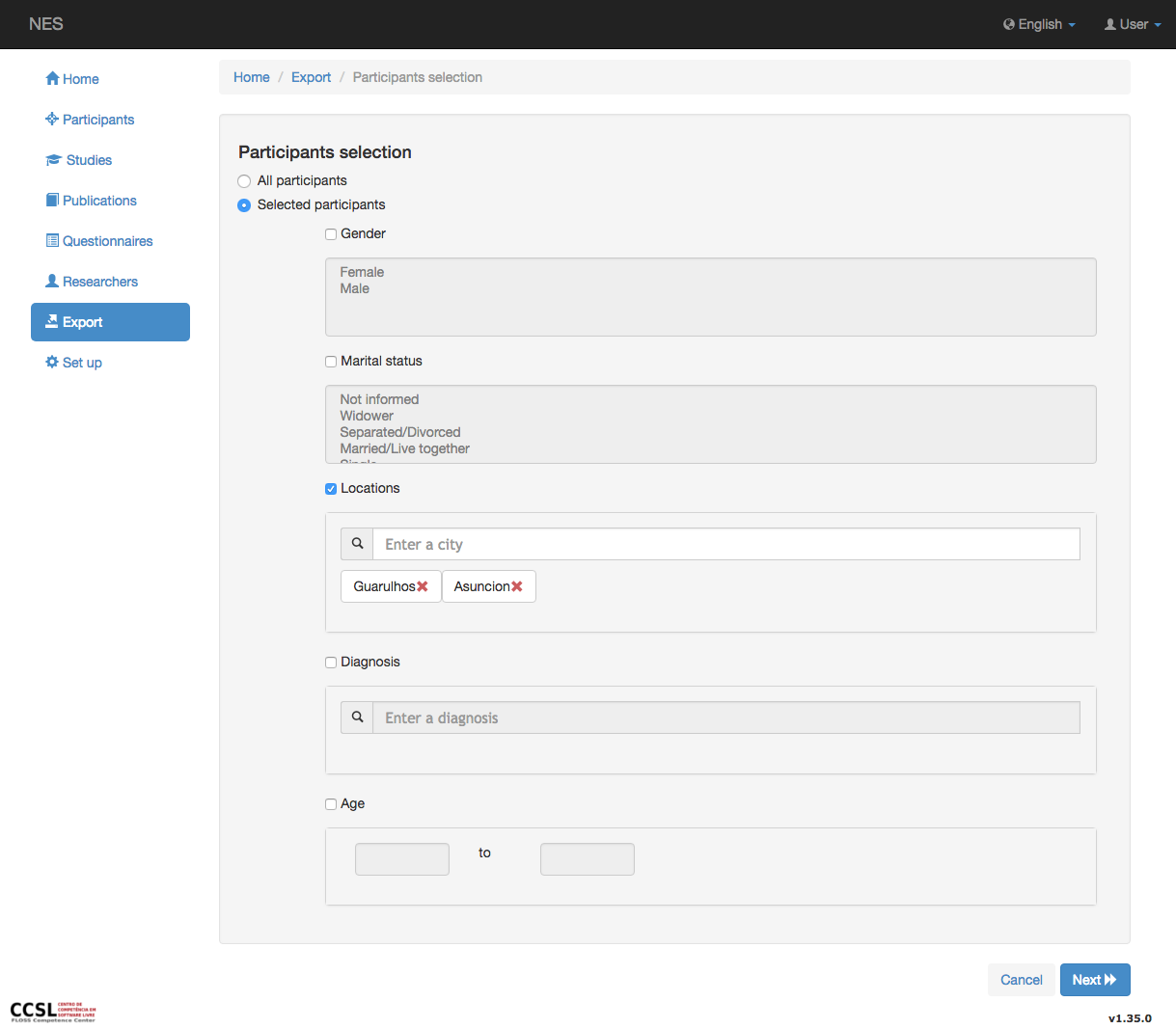
You can continue selecting other options or simply click the Next button, as explained at Concluding the filtering process section.
Filtering Diagnosis
The same procedure as Filtering Locations is used for filtering diagnosis.
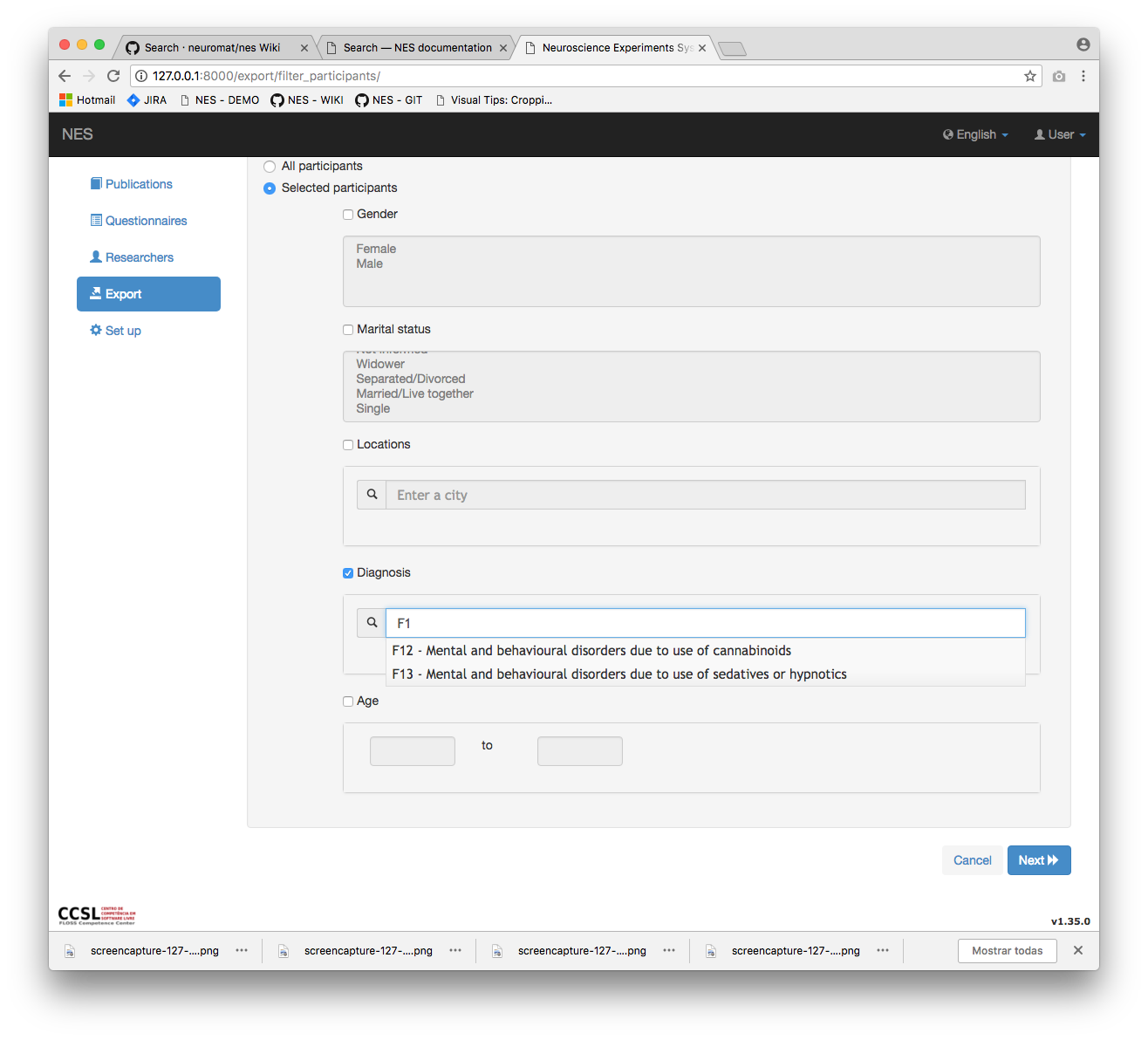
You can continue selecting other options or simply click the Next button, as explained at Concluding the filtering process section.
Filtering Age
If you choose to filter participants’ age, then first click the Age checkbox to enable the filter. In the sequence, go to age intervals fields and fill the “age from” (first field) and the “age to” field (second field). Both of them must contain data.
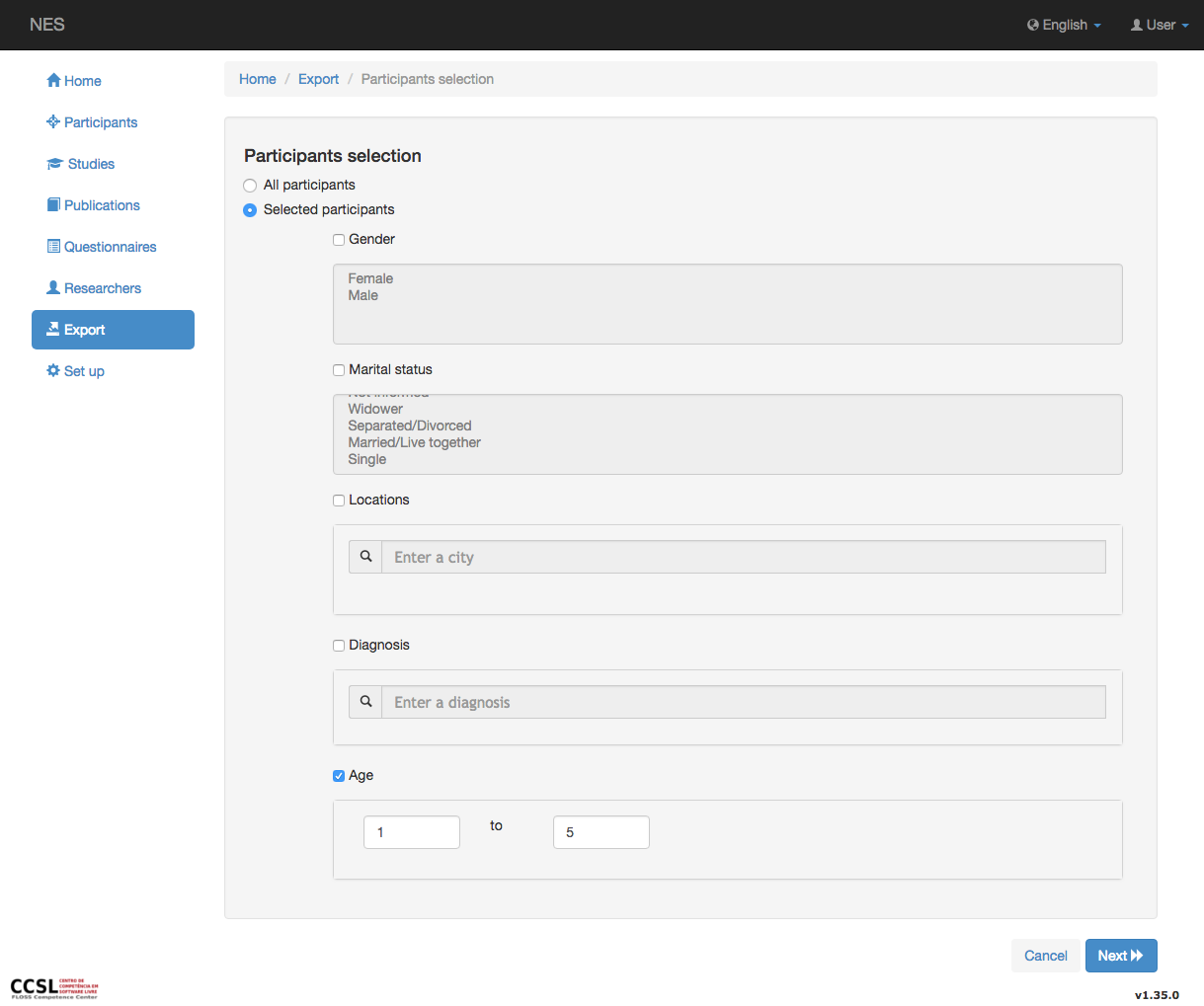
Concluding the Filtering Process
If participants data was filtered, a screen with selected participants will be shown (if you chose All participants option, this screen won’t appear).
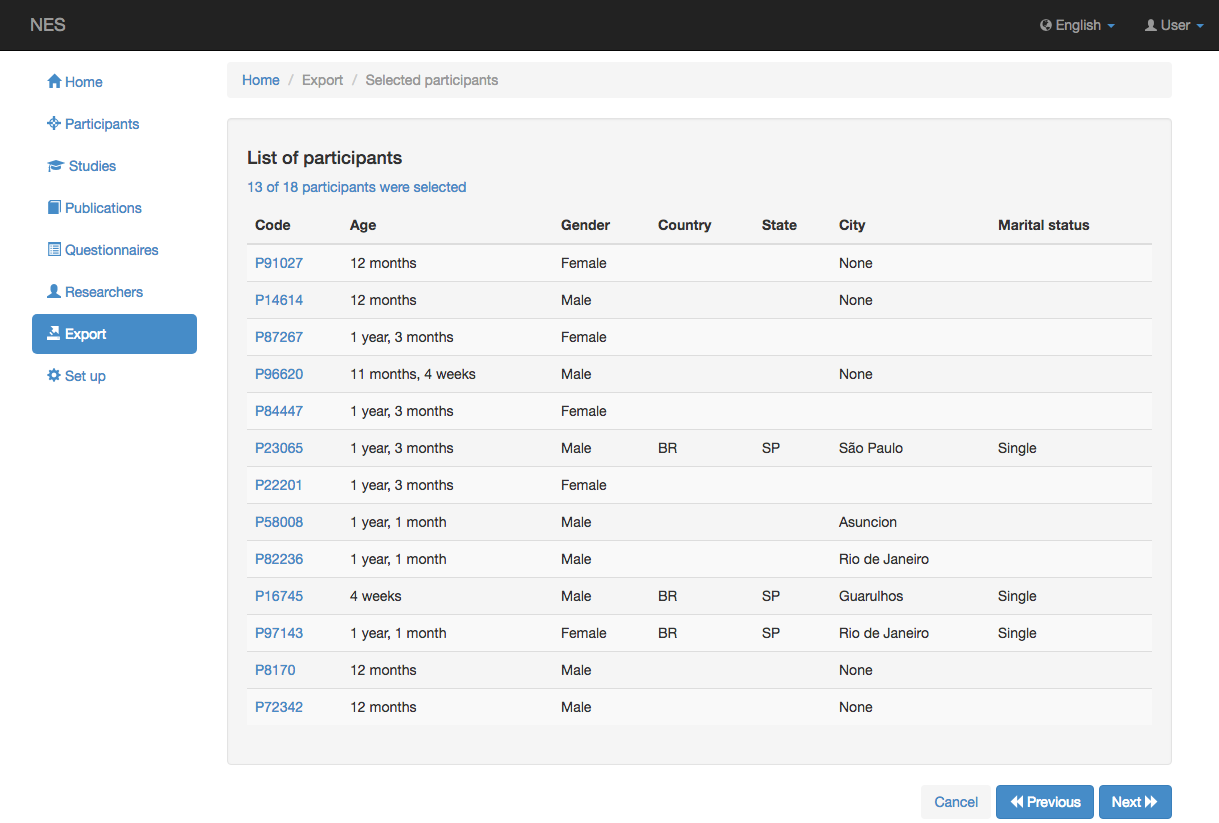
You can click the Next button to go back to the functionality that called Search, or can click the Previous button to select data once more. The Cancel button will leave the functionality that called Search and you be redirected to Home.